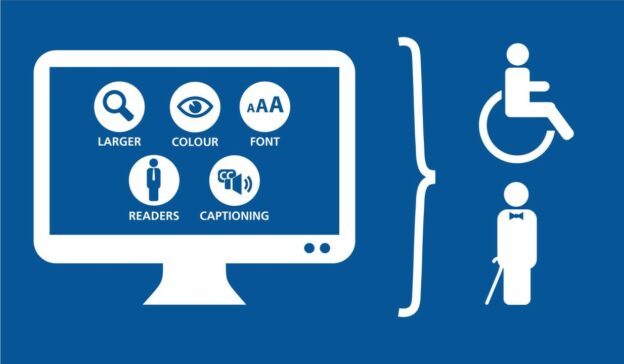
A truly successful website is one that can be accessed and used by everyone — regardless of ability, device, or situation. In web design, this is called accessibility.
For WordPress users, making your site accessible not only improves usability but also ensures compliance with standards like the WCAG (Web Content Accessibility Guidelines).
This guide explains the importance of accessibility in WordPress and provides practical steps to design for everyone.
Contents
Why Accessibility Matters
-
Inclusive experience: Ensures people with visual, auditory, cognitive, or motor impairments can access your site.
-
Better SEO: Search engines reward accessible, well-structured content.
-
Legal compliance: Many countries (including Canada, the US, and the EU) require websites to meet accessibility standards.
-
Improved usability: Accessible sites are easier to navigate for all users, not just those with disabilities.
Key Accessibility Features in WordPress
1. Themes and Plugins
-
Choose themes labeled “accessibility-ready” in the WordPress directory.
-
Avoid plugins that add cluttered or non-compliant design elements.
2. Text and Typography
-
Use clear, readable fonts.
-
Ensure sufficient color contrast between text and background.
-
Allow users to resize text without breaking the layout.
-
Provide clear menus and logical page structures.
-
Use heading tags (H1, H2, H3) properly for content hierarchy.
-
Add skip navigation links so screen readers can jump to content quickly.
4. Alternative Text for Media
-
Add descriptive alt text for images.
-
Provide captions or transcripts for videos.
-
Ensure media players are keyboard-accessible.
5. Forms and Interactive Elements
-
Label form fields clearly (e.g., “Email address” instead of just “Enter here”).
-
Make sure all buttons have descriptive labels.
-
Test forms using only a keyboard to confirm usability.
6. Keyboard Accessibility
-
All parts of your site should be navigable without a mouse.
-
Use visible focus indicators (highlighted outlines when tabbing through links).
Tools for Testing Accessibility
-
WAVE Web Accessibility Tool – Browser extension to spot issues.
-
Lighthouse (Chrome DevTools) – Accessibility audits with scores.
-
NVDA or JAWS – Screen readers to test real-world usability.
-
Color Contrast Checker – Ensures compliance with WCAG contrast ratios.
WordPress Plugins for Accessibility
-
WP Accessibility – Adds skip links, fixes common issues.
-
Accessibility Checker – Scans pages and posts for accessibility errors.
-
One Click Accessibility – Provides font size adjustment, contrast toggles, and more.
Best Practices for Accessible WordPress Design
-
✅ Use simple, clear language.
-
✅ Avoid autoplaying media.
-
✅ Ensure links are descriptive (e.g., “Read our guide on WordPress SEO” instead of “Click here”).
-
✅ Test your website regularly with real users if possible.
FAQ
Q: What is the easiest way to make my WordPress site accessible?
Start by using an accessibility-ready theme and adding alt text to all images. Then install an accessibility plugin for quick fixes.
Q: Does accessibility improve SEO?
Yes. Many accessibility practices, like using headings, alt text, and fast-loading design, also help search rankings.
Q: Is accessibility required by law?
In many regions, yes. For example, Canada’s Accessible Canada Act requires digital accessibility for public sector sites.
Q: Can I add accessibility features later?
Yes, but it’s easier and more cost-effective to design with accessibility in mind from the beginning.
👉 An accessible WordPress site benefits everyone — your visitors, your rankings, and your brand. Designing for inclusivity is no longer optional, it’s essential.